•
5 Mins Read.





In a boardroom, presence fills the space: posture, eye contact, a pause that everyone feels. On video, almost all of that is flattened into a small rectangle and a compressed audio stream. Directors judge you on a few seconds of sound and a few square inches of face.
This guide covers the adjustments that matter most for virtual and hybrid board and committee meetings, where the stakes are the same but the margin for error is smaller.
The short answer: To keep your executive presence on video, fix your audio first, set up your camera at eye level with a stable frame, look at the lens at key moments, use shorter sentences and longer pauses to absorb lag, and manage the Q&A turn-taking deliberately. Send the pre-read early and have a backup plan for technical failures.
In this article
Why presence is harder on video
Tip 1: Make your audio boardroom-quality
Tip 2: Set up your frame and eye line
Tip 3: Adapt your pace and pauses to lag
Tip 4: Manage turn-taking and Q&A
Tip 5: Control the materials and the backup plan
A ten-minute pre-meeting checklist
Frequently asked questions
Why presence is harder on video
On a call, listeners lose most of the physical cues that signal confidence and control. What's left is mainly your voice and your face. And your voice is more vulnerable than most people realise.
Researchers at the Australian National University and the University of Southern California played identical conference talks and interviews in high and low audio quality. People rated the same content and the same speaker less favourably when the audio was poor, as reported by USC. In their words as paraphrased here, viewers thought the talk was worse, the speaker less intelligent and less likeable, and the research less important. For a board member joining remotely, audio quality is part of how credible you sound.
Tip 1: Make your audio boardroom-quality
This is the highest-leverage fix, and it's the one executives most often skip.
Use a proper microphone. A headset or a quality desk mic at a consistent distance from your mouth beats a laptop mic.
Check the input device in your meeting app before you join. It often defaults to the wrong one.
Choose a quiet, soft room. Hard surfaces cause echo. Close doors and mute notifications.
Do a 20-second test recording and listen with headphones. If your consonants are muddy, so are your listeners'.
For more on this, see our guide to speaking clearly on video calls.
Tip 2: Set up your frame and eye line
Presence on video is partly about looking as though you're in the room with people.
Camera at eye level. Looking down at a laptop camera makes you look smaller. Raise the camera on a stand or a stack of books.
Frame from the chest up, with some space above your head, and a clean, uncluttered background.
Light your face from the front, with a window or lamp behind the camera, not behind you.
Look at the lens at key moments, such as your headline, your ask and your answers to direct questions. Glance at the screen the rest of the time.
Sit upright and still. Constant movement is more distracting on video than in person.
Tip 3: Adapt your pace and pauses to lag
A slight delay makes it hard to tell when someone has finished speaking, which leads to overlap and rushing.
Use shorter sentences. They're easier to follow if a word drops out.
Pause longer than feels natural after key points and after you finish speaking.
Slow down on numbers, names and the ask. Details are the first casualties of compression. See our guide to slowing down when you speak.
Finish word endings clearly. Our complete guide to articulation covers how.
Tip 4: Manage turn-taking and Q&A
Q&A is where video meetings go wrong, because people can't read each other's cues.
Agree the format up front. Ask the chair how questions will be taken, such as raised hand, chat or open floor.
Restate the question briefly before you answer, in neutral terms. It confirms you heard it, buys you a beat and helps people who may have missed it. See how to answer tough board questions.
Keep answers short and check in: "Does that address your concern?" Silence on video is ambiguous.
If you're talked over, pause and say, "Let me finish this point," rather than competing.
Name people when you respond to a specific director, so there's no confusion about who you're addressing.
Tip 5: Control the materials and the backup plan
Technical failures are the one thing you can't eliminate, but you can reduce their damage.
Send the pre-read early, so directors have already seen the substance even if the connection drops. Deloitte's guidance on board communications recommends getting materials out far enough in advance for directors to prepare their questions.
Keep slides minimal. Dense slides are harder to read on a small screen. Fortune's board presentation advice is not to read your slides, and that matters even more on video.
Test screen sharing before the meeting, and have the deck open locally in case sharing fails.
Have a backup: a phone dial-in, a second device and a colleague who can take over the share.
Know your first 30 seconds by heart, so a glitchy start doesn't derail you. See how to open a board presentation.
A ten-minute pre-meeting checklist
Audio: correct mic selected, test recording sounds clean.
Camera: eye level, framed, lit from the front.
Environment: doors closed, notifications off, water at hand.
Materials: deck open locally, share tested, pre-read sent.
Voice: jaw release and a few slow breaths, then say your opening aloud once, slowly.
Backup: phone number and second device ready.
If nerves are a factor, our guide to speaking clearly when you're nervous has a short routine. The principle that presence is built through preparation is also at the heart of executive presence as a rehearsal problem.
Frequently asked questions
Does executive presence work differently on video?
The fundamentals are the same: clarity, composure and judgment. On video, though, audio, framing and pacing carry more of the load, because other cues are lost.
Should I look at the camera or the screen?
Both. Look at the lens when making important points or answering directly, and at the screen to read reactions. Too much lens-staring feels odd, too little looks evasive.
How do I handle a bad connection mid-presentation?
Stay calm, say what's happening, and switch to a backup such as audio only or a colleague sharing slides. Having sent a clear pre-read means the board already has the substance.
What if directors are in the room and I'm remote?
Hybrid meetings favour the people in the room. Ask the chair to repeat questions asked in the room, speak up if you can't hear, and be deliberate about interjecting.
Should I use virtual backgrounds?
A tidy real background is usually better. If you use a virtual one, make sure it doesn't distort your outline or distract.
Key takeaways
Audio quality shapes how credible you sound, so fix it first.
Camera at eye level, a clean frame, front lighting, and eye contact with the lens at key moments.
Shorter sentences, longer pauses and clear word endings absorb lag and compression.
Agree Q&A turn-taking and restate questions before answering.
Send the pre-read early and have a backup for every technical risk.
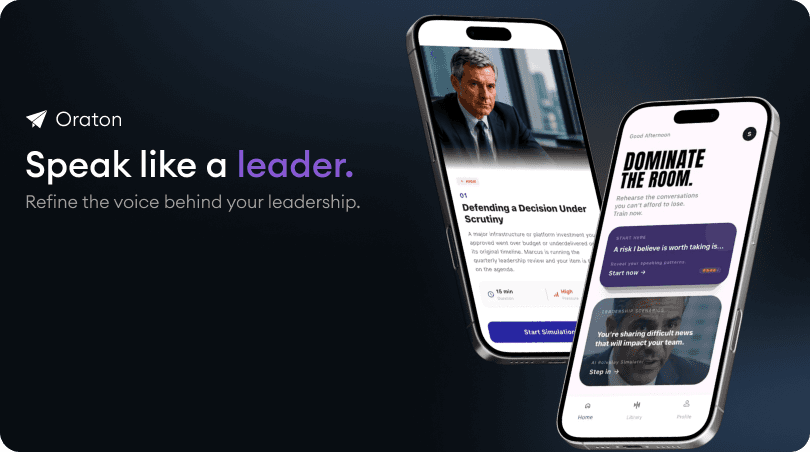
To practise virtual presentations and get feedback on clarity and pace, try Oraton's AI articulation coach.
Sources
USC Today: The quality of audio influences whether you believe what you hear
Deloitte: Tips for improving board communications and effectiveness
Fortune: How to present at a board meeting
Related articles



Previous

The future of executive coaching may not be humans versus AI, but human judgment combined with unlimited rehearsal. AI speaking coaches can give leaders a safe environment to practise difficult conversations and executive communication before the stakes are real.
Next

Executive presence isn't something leaders are born with. It's what repeated rehearsal, feedback, and preparation look like when the pressure is finally real.